
TICKTALK 6 — Free U.S. shipping · 1-year manufacturer warranty · 30-day return for refund
Technical Onboarding Guide

Get Started with TickTalk 5

Official deployment and configuration protocol for TickTalk 5 4G LTE Kids GPS Smartwatch. Follow our verified 4-step technical setup below.

1. Fully Charge Smartwatch Connect the device to its magnetic charger until battery capacity reaches 100% before configuration.
2. 2.4GHz Wi-Fi Connection Ensure your supervisor smartphone is connected to a stable 2.4GHz network for pairing and firmware updates.
3. Install Supervisor App Download the official TickTalk Parent App on mobile devices running iOS 15.6+ or Android 6.0+.
Standard Operating Procedure

4-Step Onboarding Protocol

Engineered for seamless device setup, secure SIM provision, and verified parental control authorization.

Step 1: SIM Card & Cellular Activation

For devices pre-configured with a TickTalk Wireless SIM card, cellular activation is processed digitally without visiting a carrier store.

  • • Verify the ICCID identification number provided on your device packaging.
  • • Select a nationwide 4G LTE monthly plan (Essential or Unlimited Data).
  • • If utilizing an approved international GSM carrier SIM, insert the card securely into the side SIM slot before powering on.
Step 2: Wi-Fi Setup & Firmware Calibration

Updating the device firmware ensures optimized battery performance, accurate GPS positioning algorithms, and enhanced security encryption.

  • • Hold the physical power button for 3 seconds to boot up the TickTalk 5 device.
  • • Navigate on screen to Watch Settings → Wi-Fi, enable wireless networking, and select your access point.
  • • Navigate to Settings → OS Update and execute the latest firmware installation.

Step 3: App Pairing & Admin Binding

Establish a secure encrypted pair bond between the primary administrator smartphone app and the child's smartwatch.

  • • Launch the TickTalk Parent App and register your primary administrator account.
  • • Tap Add Device and point your smartphone camera at the pairing QR code generated on the watch screen.
  • • Set up your child's profile parameters and emergency contact preferences.

Step 4: Safety Filters & System Verification

Finalize safety settings to ensure firewall firewalling against unauthorized callers and verify real-time tracking accuracy.

  • • Add up to 53 administrator-approved contacts. Unapproved incoming calls and texts are blocked automatically.
  • • Program recurring School Mode schedules to disable non-essential features during class hours.
  • • Perform a test voice call, 5MP FaceTalk video call, and real-time GPS location check within the app.
Hardware Overview

TickTalk 5 Hardware & Security Specs

Built for rigorous everyday use by children aged 3–12, combining military-grade parental firewalling with HD cellular communications.

TickTalk 5 Onboarding & Hardware Specifications
Cellular Network4G LTE Worldwide Bands (B1/B2/B3/B4/B5/B7/B12/B17/B66)
PositioningMulti-mode GPS + Wi-Fi Triangulation + Cellular LBS SmartPin™
Display & OpticsHD Touchscreen with integrated 5MP Front Camera for FaceTalk™
OS CompatibilityTickTalk Parent App for iOS 15.6+ and Android 6.0+
Parental Firewall100% Closed Ecosystem — Zero open internet, social media, or unauthorized apps
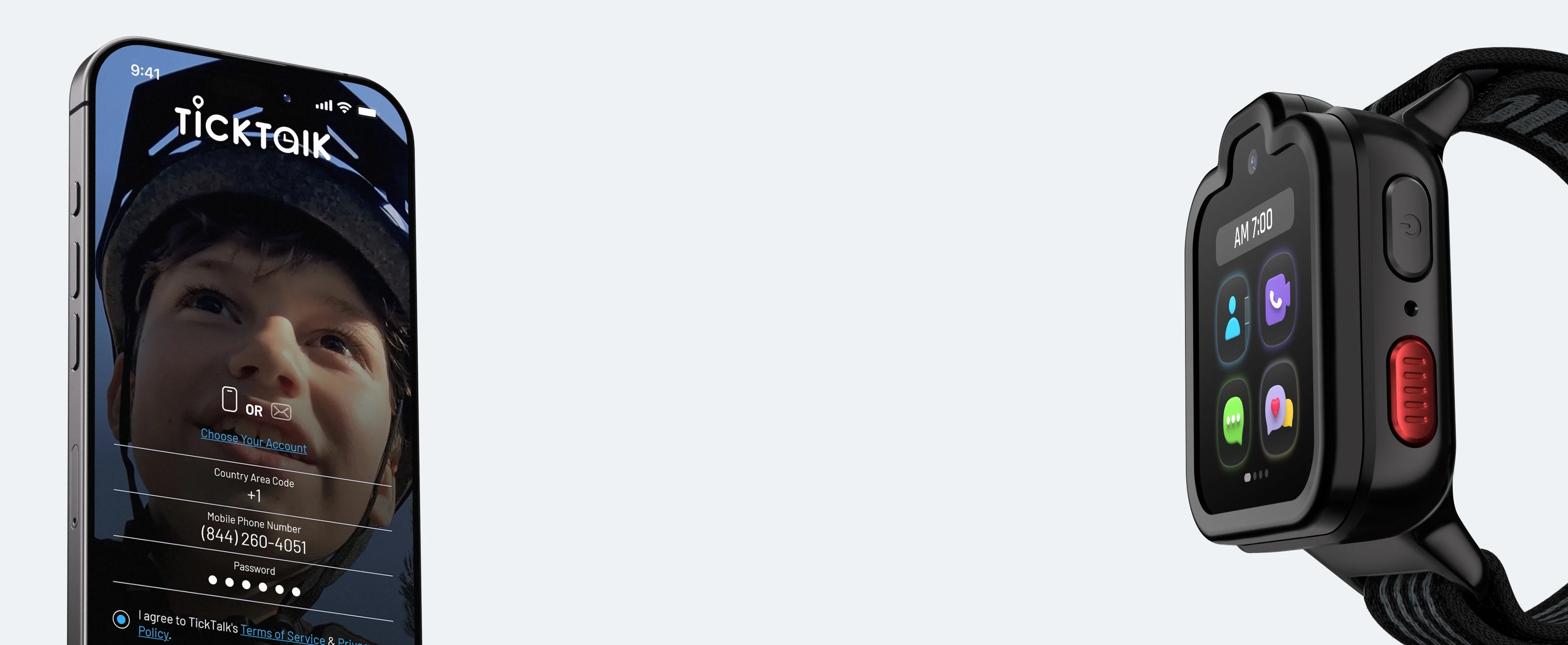
TickTalk 5 smartwatch technical onboarding and Parent App pairing preview
Technical Support

Setup & Troubleshooting FAQ

How do I reset or re-pair a TickTalk 5 smartwatch?

To unpair a smartwatch, open the primary administrator's TickTalk Parent App, navigate to Account Settings, and select "Remove Device". On the watch itself, access Watch Settings → System → Factory Reset. Note that factory resets clear local cache and unbind existing app connections.

What cellular networks are compatible with TickTalk 5 internationally?

In the United States, TickTalk 5 operates on AT&T and T-Mobile 4G LTE networks via TickTalk Wireless or compatible SIM cards. For international buyers and overseas deployment, unlocked GSM models operate on regional 4G LTE networks supporting compatible FDD-LTE frequency bands.

Why is the location tracking showing indoor positioning variance?

Location determination utilizes GPS outdoors and switches to Wi-Fi location database triangulation indoors. To optimize indoor SmartPin positioning accuracy down to 10–50 meters, ensure Wi-Fi auto-scanning is enabled within the Parent App settings.

Need Enterprise Setup or Procurement Support?

Questions about bulk distribution, global SIM provisioning, device customization, or technical troubleshooting? Contact our specialist team directly.